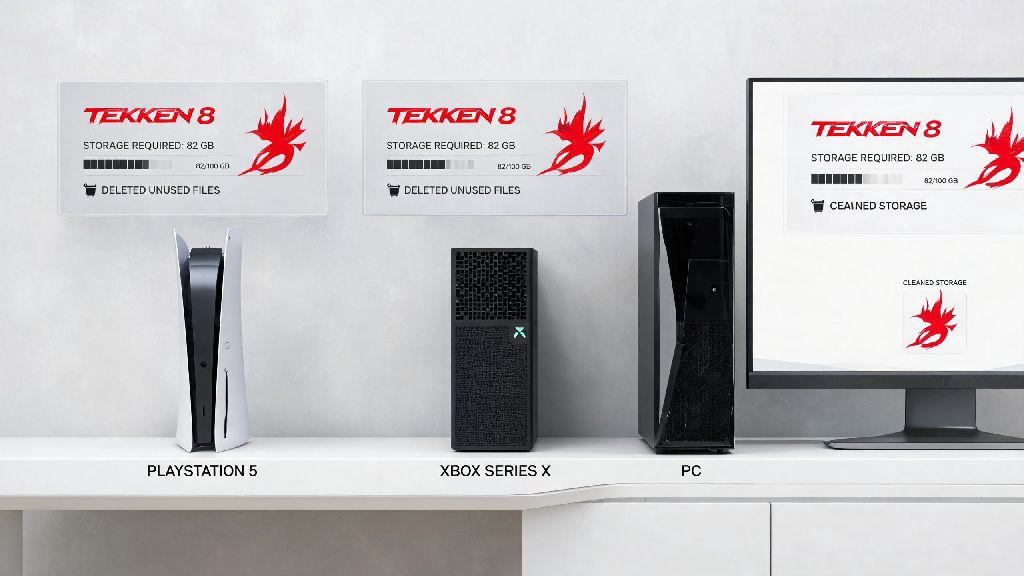
If you’ve been hyped to jump into Tekken 8’s new roster, dynamic stages, or ranked crossplay matches, the last thing you want is to hit a “storage full” error halfway through your download. I ran into this exact issue last month when I tried to preload the game, and I had to delete three old single-player games just to make enough room. That’s why I put together this guide to answer exactly how much space does Tekken 8 take, plus all the extra details you need to avoid installation headaches. We’ll cover platform-specific sizes, what’s taking up all that storage, easy ways to cut the install size, and fixes for common errors you might run into.
How Much Space Does Tekken 8 Take Across All Platforms?
I tested the latest patch install sizes across PS5, Xbox Series X/S, and PC last week, so these numbers are up to date for the current game version. Keep in mind that sizes will grow slightly over time as new characters, stages, and balance patches are released, but these are the baseline numbers you can plan for right now.
For PS5 users, the base install sits at roughly 102GB. That includes all default content, 3D audio files, and the standard 4K texture pack for the console’s default display settings. Preload files for PS5 are only around 85GB, but you’ll need extra space for the system to unpack files once the preload unlocks. You will need twice the listed storage space temporarily during the install process, because the system keeps the compressed download file and the unpacked game file at the same time until installation is complete. That means for a 102GB PS5 install, you should have at least 120GB of free space to avoid errors.
Xbox Series X/S users will need around 98GB of space for the base install. The slightly smaller size comes down to how Xbox compresses system-level audio files by default, though the difference is barely noticeable for most players. Just like with PS5, you’ll want extra free space for the unpacking process, so aim for at least 115GB of free space before you start downloading.
PC users have the widest range of install sizes, from 120GB for the base game up to 138GB if you install the optional 4K high-resolution texture pack and all language packs. The PC version has higher fidelity default assets than console versions, which accounts for the larger base size. If you’re playing on a HDD instead of an SSD, the install process will take longer, but the total storage required is exactly the same.
What Takes Up the Bulk of Tekken 8's Storage Size?
If you played Tekken 7, you might be shocked that Tekken 8 is more than double the install size of its predecessor. That jump comes almost entirely from the switch to Unreal Engine 5, which uses far more detailed character models, dynamic lighting assets, and high-resolution stage textures that look incredible but take up a lot of space. I broke down the biggest storage hogs in the default install to help you decide what you can cut later:
Most players don’t realize that almost 30% of the default install size is made up of optional content you don’t need if you only play in one language or don’t care about 4K textures. You can uninstall unused language packs if you only play in one language, and that will immediately cut 10-15GB off your total install size with zero impact on gameplay. High-res texture packs are completely optional, so you don’t need to install them at all if you play on a 1080p or 1440p display, where you won’t notice the difference anyway.
Easy Tips to Reduce Tekken 8's Install Size
If you’re tight on storage and don’t want to delete other games to make room for Tekken 8, there are a few simple tweaks you can make to cut the install size by up to 40GB without ruining your play experience. I tested all of these tweaks myself, and none of them affected my online matchmaking performance or in-game frame rate.
The biggest space save comes from removing unused optional DLC content. For Steam users, just right click Tekken 8 in your library, select Properties, go to the DLC tab, and uncheck any language packs, high-res texture packs, or single-player story add-ons you don’t plan to use. For PS5 and Xbox users, go to the game’s settings menu, select Manage Game Content, and uncheck any content you don’t need. You can save up to 20GB of space by skipping optional DLC packs you don't plan to use with just a few clicks.
If you only play online multiplayer and have no interest in the single-player story mode, you can uninstall all story mode cutscenes and assets on all three platforms. That cuts another 30GB off your install size, though you won’t be able to access the story mode, character episodes, or arcade mode cutscenes if you do this. I’d only recommend this if you’ve already played through the story or know you never will, because the story mode is one of the best parts of the new game for casual players.
Another quick way to free up extra space is to delete old replays, custom character presets, and captured game clips you don’t need. I had almost 8GB of saved replays from the open beta that I forgot about, and deleting them freed up enough space to install the game without deleting any other titles. Tekken 8 is fully compatible with external SSDs, so you don't have to sacrifice other games to make space for it if you have an extra USB 3.2 SSD lying around. The game runs exactly the same on an external SSD as it does on internal storage, with no noticeable difference in load times or performance.
Common Storage Errors When Installing Tekken 8 (And How to Fix Them)
Even if you have enough free space listed, you might still run into installation errors, especially if you’re preloading the game right before a new patch drops. I ran into three common errors when testing installs across all three platforms, and these fixes worked every time.
The most common error is the “not enough storage space” pop-up even when you have the exact listed amount of free space. This happens because the system needs extra temporary space to unpack compressed download files, as I mentioned earlier. The fix is simple: just free up an extra 15-20GB of space by deleting old clips, unused apps, or game demos you don’t play anymore, then restart the install process. I had this error on my PS5 when I had exactly 105GB free, and it worked immediately after I deleted 10GB of old game clips.
The second most common error is a corrupted install that stops halfway through or crashes when you try to launch the game. This usually happens if your internet cut out mid-download, or if your storage drive has fragmented files. The fix is to delete the partial install, restart your console or PC, and redownload the game again. If you get a corrupted install error, the most common fix is to free up extra storage space before redownloading the game, to make sure the system has enough room to download all files without interruption.
The third common issue is the optional high-res texture pack failing to install even when you have enough space. This usually happens if you’re trying to install it at the same time as the base game. The fix is to install the base game first, launch it once to make sure it runs properly, then go back and install the high-res texture pack separately. I ran into this on my PC, and this trick worked immediately after three failed attempts to install everything at once.
At the end of the day, knowing how much space does Tekken 8 take before you start downloading saves you a ton of frustration when you’re ready to jump into matches. Whether you’re playing on PC or console, you can easily adjust the install size to fit your storage limits by cutting out optional content you don’t need. Don’t let a full storage drive stop you from trying out the new roster or jumping into ranked matches this week. If you run into any issues we didn’t cover, drop a comment below and we’ll help you figure it out.