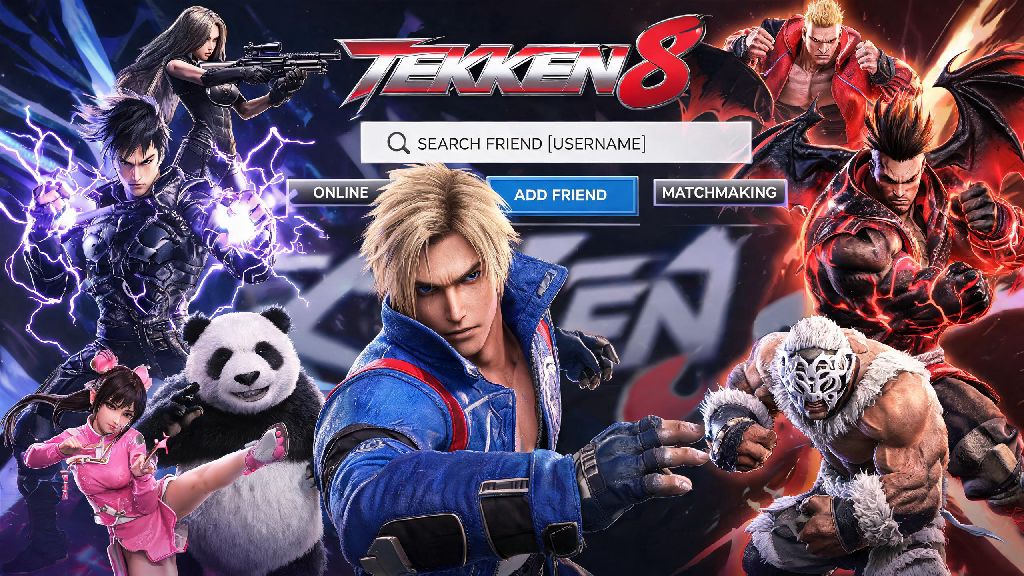
There’s nothing more frustrating than grabbing a copy of Tekken 8, hyped to beat up your long-time fighting game buddy, only to get stuck trying to find them in the game’s menu system. I ran into this exact issue last month when I tried to connect with a friend who plays on Xbox, and I spent 20 minutes toggling settings before I figured out what I was doing wrong. If you’re in the same boat, this guide breaks down exactly how to add friends on Tekken 8, no matter what platform you play on, plus fixes for the most common roadblocks that pop up.
How to Add Friends on Tekken 8: Step-by-Step for Every Platform
The process changes a little depending on what device you’re using, but all routes start in the game’s main menu, not your platform’s built-in friend list if you want to use crossplay features. For PlayStation 5 players, navigate to the “Friends” tab on the top right of the main menu, select “Search for User,” enter their full Tekken 8 display name, and hit send request. If you’re on Xbox, the steps are almost identical, but you’ll have the option to filter for only Xbox players or cross-platform players if you want to narrow results. For Steam PC players, you can either search for a player’s display name directly, or import your existing Steam friend list to skip manual entry entirely. That means if most of your friends already own the game on Steam, you won’t have to type in a single username to add them. Just make sure you’ve granted Tekken 8 permission to access your Steam friend list when you first launch the game, or you can enable that setting later in the options menu.
Common Issues When Adding Friends on Tekken 8 (And Quick Fixes)
Even if you follow all the steps correctly, you might run into errors that stop friend requests from going through or appearing. Most of these are easy to fix with a few quick checks, and you won’t have to restart your game or reset any major settings to get things working. Before you try adding a friend again, run through this quick pre-check list to rule out the most common causes:
If you still don’t see your friend’s request after 10 minutes, try restarting your game. Server lag can sometimes delay requests by a few minutes, especially during peak play times on weekends or after a new character drop. If the “name not found” error keeps popping up, ask your friend to send you their display name as a text so you can copy it exactly, instead of guessing at spelling or capitalization.
How to Invite Added Friends to Matches and Lobbies
Adding friends is only half the fun: once they’re on your list, you can jump into all kinds of game modes together, from casual 1v1s to team ranked queues to large custom lobbies with spectator mode. To invite a friend to a quick match, just open your in-game friend list, select their name, and hit “Invite to Match.” They’ll get a pop-up notification no matter what menu they’re in, and they can join with one click if they’re not already in an active game. If you want to play with a larger group, create a custom private lobby from the online play menu, set a password if you want to keep random players out, and send invites to everyone on your friend list directly from the lobby screen. You can also queue for cross-platform team ranked with up to two friends, which is a great way to climb the ranked ladder without dealing with random teammates who throw matches if they lose the first round. One thing to note: if you’re playing on a different platform than your friend, you won’t be able to see their platform-specific achievements or join their platform party chats, but you can use Tekken 8’s built-in voice chat in lobbies and matches to communicate.
Pro Tips to Manage Your Tekken 8 Friend List Smoothly
Once you’ve added a bunch of friends to your list, there are a few hidden features that make it easier to find the people you play with most often, and avoid the ones you don’t. First, you can import existing platform friends directly from the settings menu, which pulls in everyone on your PSN, Xbox Live, or Steam friend list who owns Tekken 8, so you don’t have to add them one by one. You can also favorite up to 20 friends to pin them to the top of your friend list, so you don’t have to scroll through hundreds of names to find the people you play with every weekend. If you want to grind ranked alone without getting spammed with invites, you can toggle your online visibility to “appear offline” in the friends menu, so no one can see you’re online or send you match invites. You can also block and report toxic players directly from the post-match screen, which removes them from your friend list if you added them by accident, and stops them from sending you requests or joining your lobbies in the future. I use this feature all the time after running into players who spam hate messages after losing a match, and it works instantly to block all interactions.
At the end of the day, playing Tekken 8 with friends is way more fun than grinding solo against random players, even if you lose more matches than you win. Once you know how to add friends on Tekken 8 and fix the small connection issues that pop up, you can spend less time messing with menus and more time practicing your combos and climbing the ranks with your crew. If you run into an issue we didn’t cover here, try checking the official Tekken 8 server status page to rule out outages, or reach out to support if the problem persists for more than a day.