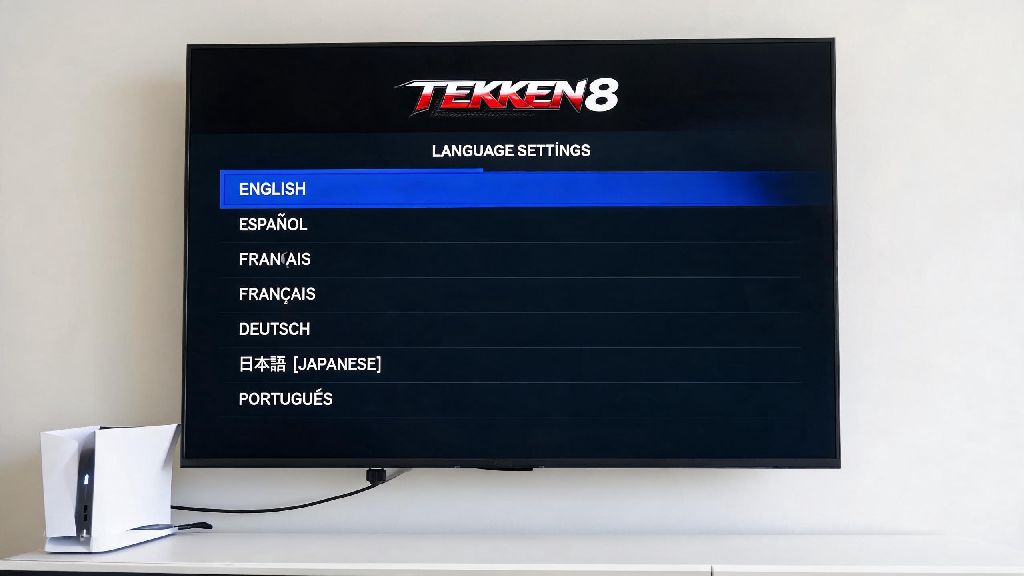
If you’ve ever booted up a new copy of Tekken 8 only to find all menus, cutscenes, and prompts in a language you don’t understand, you know how frustrating that first 10 minutes of fumbling through settings can be. Maybe you imported a copy from a different region, your account default is set to a language you don’t use, or the game auto-selected the wrong locale on first launch. This guide breaks down exactly how to change language tekken 8 across every major platform, plus fixes for common issues that lock you out of language settings and hidden customization options you might not know exist. It works for physical and digital copies, no third-party mods or workarounds required.
How to Change Language in Tekken 8 for All Major Platforms
The process varies slightly depending on what device you’re playing on, but all steps take less than a minute once you know where to look. We tested these steps on both physical and digital copies of the game, so they work regardless of where you purchased your copy.
PlayStation 5 steps: First, close Tekken 8 completely if it’s running in the background. Head to your PS5 system settings, select “Language and Region”, then set your preferred system language first. Launch Tekken 8, head to the main menu, press Options, select “Settings”, then navigate to the “Language” tab. Pick your preferred language from the dropdown, and the game will refresh immediately to apply the change. You don’t need to restart the console for this to work.
Xbox Series X/S steps: Similar to PS5, close the game first if it’s open. Go to your Xbox system settings, select “System”, then “Language & location”, and set your desired system language. Open Tekken 8, go to the main menu, press Menu, select “Settings”, then “Language”, and pick your option. If the language you want doesn’t show up, make sure your Xbox region is set to a region that supports that language, then restart the game.
PC (Steam) steps: You can adjust language either in Steam or in-game, but we recommend adjusting Steam settings first to avoid glitches. Open your Steam library, right click on Tekken 8, select “Properties”, then go to the “Language” tab. Pick your preferred language from the list, and Steam will automatically download any required language packs if they’re not already installed. Launch the game, and the language will be applied by default. You can still adjust it later in the in-game settings menu if you want to switch temporarily.
Steam Deck steps: The process is almost identical to PC Steam, but you’ll want to make sure your Steam Deck’s system language is set to the same language you want to use for the game to avoid conflicts. If you’re playing in handheld mode, you can access the Steam library settings by pressing the Steam button, navigating to your library, selecting Tekken 8, then opening the properties menu just like you would on desktop.
Adjusting Subtitle and Audio Language Separately in Tekken 8
One of the best features of Tekken 8’s localization settings is that you don’t have to set menu, audio, and subtitle language to the same option. This is a huge win for long-time fighting game fans who prefer the original Japanese voice acting but want menus and subtitles in their native language, or vice versa.
To adjust these settings separately, head to the in-game Language tab, then scroll down past the main menu language option. You’ll see separate dropdowns for subtitle language customization and audio voice track selection. You can pick any combination of supported languages, no extra downloads are required for most regions. For example, you can set menu language to English, audio to Japanese, and subtitles to Spanish, which is perfect if you’re playing with friends who speak multiple languages.
That means you don’t have to sacrifice the original voice performances to understand the story mode cutscenes. A lot of players don’t realize this option exists, so they end up playing with a voice track they don’t prefer just to understand the dialogue. All language packs are included with the base game, so you won’t have to pay extra for any of these options.
Just note that if you switch audio language mid-session, you’ll need to restart the game for the change to take effect. Menu and subtitle language changes apply immediately, no restart required.
Fixing Common Tekken 8 Language Setting Issues
Sometimes, the language option is greyed out or doesn’t work as expected, usually because of region locks, account settings, or cloud sync conflicts. We’ve compiled the most common issues players run into, plus simple fixes that work 90% of the time:
I ran into the greyed out language option issue myself when I first launched a Japanese import copy of Tekken 8 on my US PSN account. I had to switch to my Japanese PSN account temporarily to download the base language pack, then switch back to my US account to adjust the settings to English. It’s a small extra step, but it only takes a couple of minutes.
If none of these fixes work, you can contact the official support team for your platform, as there may be a region-specific lock on your copy of the game that they can remove for you. Avoid downloading any third-party language packs from untrusted sites, as they can corrupt your game files or get you banned from online play.
Hidden Language Customization Features You Might Have Missed
Tekken 8 has a few extra language-related features that most players don’t find unless they dig deep into the settings menu. These small touches make the game feel a lot more personalized, especially for long-time fans of the series.
First, the regional announcer voice feature. When you select certain languages, the in-match announcer switches to a native speaker of that language, with region-specific lines for moves, round wins, and knockout calls. For example, setting the language to Korean gives you the iconic Korean Tekken announcer that’s been used in Korean tournaments for years, and setting it to Latin American Spanish gives you a more casual, energetic announcer that’s a fan favorite in the Latin American Tekken community.
Second, you can toggle character name localization on or off. If you’re a long-time Tekken fan, you probably know characters by their original Japanese romanized names, like Jin Kazama, Kazuya Mishima, and Ling Xiaoyu. If you turn off character name localization, those names will stay the same even if the rest of your menus are in a language that usually uses localized names. It’s a small feature, but it makes navigating the character select screen a lot easier if you’re used to the original names.
Third, you can set a default tournament language that overrides your personal settings. If you run local tournaments with players from different regions, you can set the tournament mode to use a universal language like English, so all players can navigate the menu regardless of their personal settings. You don’t have to reset all your personal settings every time you host a tournament, which saves a lot of time.
You can find all these features in the Advanced Language Settings tab, which is hidden at the bottom of the main Language settings page. Most players scroll past it without noticing, so it’s worth checking out if you want to customize your experience even more.
At the end of the day, adjusting your language settings shouldn’t be a barrier to enjoying Tekken 8’s fast-paced gameplay, deep story mode, and fun online matches. All the steps we covered are completely official, so you don’t have to worry about getting banned from online play or corrupting your save files. Now that you know how to change language in Tekken 8, you can jump straight into matches without fumbling through unreadable menus or missing important story dialogue. If you found this guide helpful, be sure to check out our other Tekken 8 tips for more ways to customize your gameplay experience and climb the ranked ladder faster.