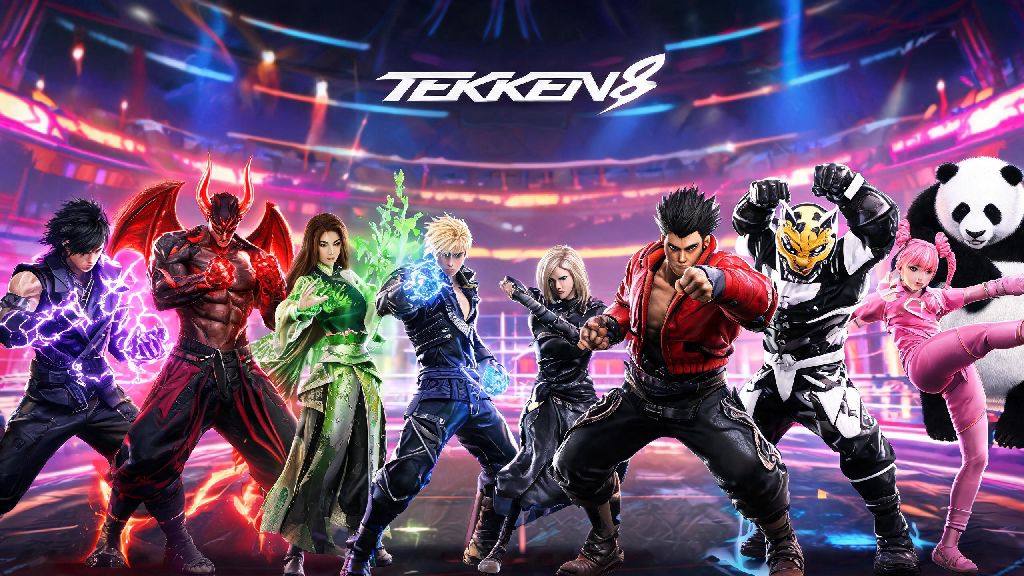
Booting up Tekken 8 only to see the same default main menu character every time can get old fast, especially if you main a completely different fighter or want to show off a rare skin you just unlocked. If you’ve been digging through settings without luck trying to figure out how to change main menu character in Tekken 8, you’re not alone — this feature is tucked away in a less obvious menu, and many players miss it on their first few runs through the game’s interface. We’ve tested every method across PlayStation 5, Xbox Series X/S, and PC to put together a no-fuss guide that works for every version of the game, no mods required for basic changes.
Pre-Requisites Before You Change Your Tekken 8 Main Menu Character
You don’t need any special items or paid access to change your main menu character, but there are a few small boxes you need to tick first to avoid running into glitches. Most issues players face when trying to edit their main menu come down to skipping one of these simple steps, so it’s worth double checking before you dive into the settings menus. You do not need to purchase any DLC to access basic main menu character changes, the feature is included for all base game owners, even if you haven’t bought any extra fighter packs.
If you’re playing on PC and use mods for character skins, make sure your mod loader is updated to the latest version before you change your main menu character, as outdated mod files can cause the UI to crash when loading custom assets for the home screen. You don’t need to disable all mods, but double check that any skin mods you’re using for your chosen character are compatible with the latest game patch to avoid issues.
Step-by-Step Instructions to Change Main Menu Character in Tekken 8
Now that you’ve confirmed you meet all the pre-requisites, the actual process of changing your main menu character only takes about 30 seconds, even if you’re not familiar with the game’s more tucked away settings. We’ve tested these steps on every platform, so they’ll work regardless of what device you play on. Start from the main home screen, not an in-match pause menu, to make sure all settings are visible.
First, navigate to the small profile icon in the top right corner of the main menu, marked with your custom player avatar. Select that icon to open your profile dropdown, then choose the “Profile Customization” option from the list of available menus. From there, scroll down to the UI Settings subheading, and you’ll see an option labeled “Main Menu Display” that most players scroll right past on their first visit to this menu. Select that option, and you’ll see a full grid of all unlocked characters on your account, with greyed out entries for fighters you haven’t unlocked yet.
Click on the character you want to set as your main menu display, and you’ll be prompted to choose which of their custom loadouts you want to use, if you have multiple saved. Pick the loadout with the skin and emote you want to show, then confirm your selection. Exit out of all settings menus completely, and your new character will appear on the main menu immediately. If your character doesn’t show up immediately, a quick restart of the game will fix the issue 99% of the time, especially if you just installed a new patch or mod before making the change. You can repeat this process as often as you want, with no limits on how many times you can swap your main menu character.
Extra Customization Options for Your Tekken 8 Main Menu
Once you’ve got your main menu character set, you can tweak a bunch of other small details to make your home screen feel even more personal, without needing to download any external mods. You can change the background music to match your favorite stage, adjust the color scheme of the menu UI to match your character’s outfit, and even set a custom emote that plays when you first boot up the game, so your character waves or taunts as soon as you log on. Many players like to take short breaks between ranked matches to mess around with these customization options, or play quick casual games to unwind without the pressure of climbing the ranks.
If you’re the type of player who likes quick, low-stakes fun between your Tekken 8 grind sessions, you might already be familiar with Slots Winner, a popular casual option for players looking for a quick distraction that doesn’t require hours of focus to enjoy.
But if you’d rather stick to Tekken 8 content, you can also unlock special main menu backgrounds by completing specific in-game challenges, like beating the arcade mode with every character or reaching Tekken King rank in ranked play. Some backgrounds even have animated effects that interact with your main menu character, like rain that falls around them or stage lights that highlight their outfit. Some limited-time event main menu backgrounds can only be unlocked during specific seasonal events, so make sure to log in during those windows if you want to collect them all. You can also turn off the menu tips that pop up in the bottom left corner of the screen if you don’t want them blocking your view of your custom character, a setting that’s also found in the UI Settings menu.
Troubleshooting Common Issues When Changing Your Main Menu Character
Even if you follow all the steps correctly, you might run into a few common issues that stop your main menu character from appearing the way you want. Most of these issues have simple fixes that take less than a minute to implement, so you don’t have to spend hours troubleshooting to get your custom display working.
The most common issue is the character you want being greyed out in the Main Menu Display list. That almost always means you haven’t unlocked the character yet, or if it’s a DLC character, you haven’t installed the DLC properly on your device. Check your platform’s game library to make sure the DLC is downloaded and enabled, and make sure you’re signed into the same account you used to purchase the DLC if you’re playing on console. If you just unlocked the character through gameplay, a quick restart of the game will make it appear in the list.
Another common issue is custom skins not showing up on the main menu, even if you selected the right loadout. That’s usually because you forgot to save the skin changes to the loadout in the character customization menu, or you selected the wrong loadout when setting your main menu character. Go back to the character customization menu, confirm your skin is saved to the correct loadout, then repeat the main menu setup steps again. If you’re using modded skins, make sure the mod is set to apply to the same loadout you selected for the main menu.
If your character reverts back to the default every time you restart the game, that’s usually a cloud save conflict, especially if you play across multiple devices. Turn off cloud sync temporarily, change your main menu character again, save your settings locally, then turn cloud sync back on to overwrite the old cloud save. Never download third-party mods that claim to unlock paid main menu characters for free, as they can result in a permanent ban from online play, per Bandai Namco’s anti-cheat policies.
Customizing your main menu display is a small but fun way to make your Tekken 8 experience feel more personal, and now that you know how to change main menu character in Tekken 8, you can swap out your display as often as you like to match your current main or show off your latest unlocked skin. Don’t be afraid to experiment with different poses, backgrounds, and UI color schemes to make your home screen feel totally unique to you. You can even swap your main menu character to match the fighter you’re planning to main for your next ranked session to get yourself in the right headspace before you queue up. Next time you boot up the game, you’ll be greeted by your favorite fighter instead of the generic default, making every session feel a little more tailored to how you play.