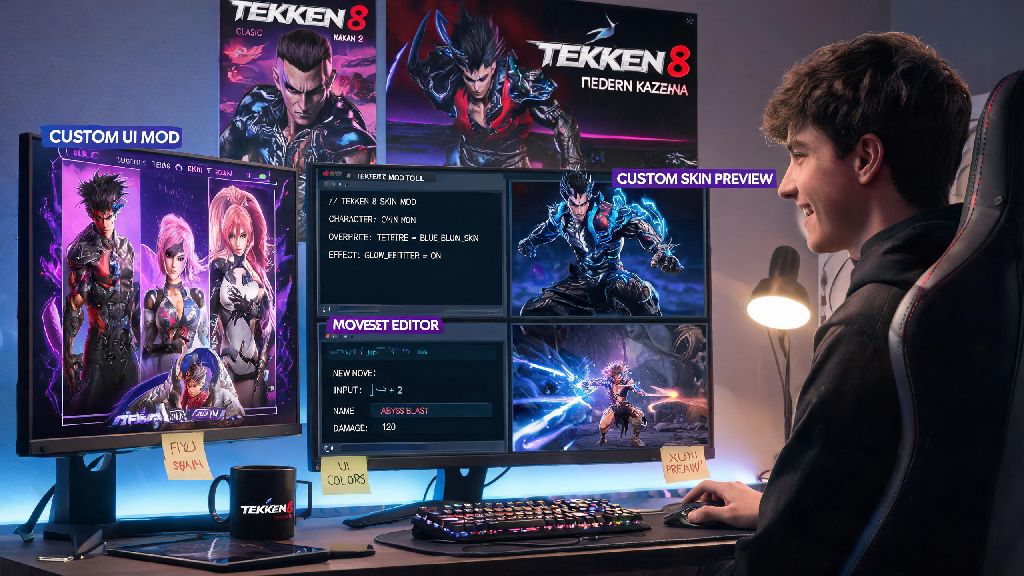
If you’ve spent dozens of hours grinding ranked matches, learning frame data, and mastering your main in Tekken 8, you might be looking for ways to shake up your offline play experience. Mods are one of the best ways to do that, letting you add custom character skins, new movesets, quality-of-life UI changes, and even custom game modes that the base game doesn’t offer. A lot of new players avoid modding because they worry they’ll break their game or get banned from online play, but the process is far simpler than most people think. This guide will walk you through how to install mods for Tekken 8 safely, with zero risk to your online account as long as you follow the basic rules we outline.
Pre-Installation Prep: What You Need Before You Add Mods to Tekken 8
Before you download any mods, there are a few critical steps you need to take to avoid common headaches later. First, never use mods in online matches, even if they seem harmless like a custom skin. Tekken 8’s anti-cheat system detects modified game files when you connect to online servers, and you can get a permanent ban with no way to appeal. All mods mentioned in this guide are for offline play only, including local versus matches with friends, single-player arcade mode, and practice mode.
You’ll also want to make sure you’re running the latest official version of Tekken 8 on PC, since console versions of the game don’t support user modding at all. Cracked copies of the game often have outdated files and compatibility issues, so we strongly recommend using a legally purchased copy from Steam or the Epic Games Store for the most stable mod experience.
Before you start editing any files, gather these essential items to make the process go smoothly:
Finally, back up your entire Tekken 8 game folder before you make any changes. While verifying game files on Steam will revert any modded files to their original state, having a backup saves you time if you need to roll back quickly after a bad mod installation. You can copy the folder to an external drive or a separate folder on the same drive in just a few minutes.
How to Install Mods for Tekken 8: Step-by-Step Walkthrough
Once you’ve finished your pre-installation prep, the actual mod installation process only takes a few minutes per mod, even if you’ve never modded a game before. First, locate your Tekken 8 game directory on your PC. If you own the game on Steam, you can find this by right-clicking Tekken 8 in your library, selecting “Manage”, then clicking “Browse local files”. For Epic Games Store users, go to your library, click the three dots next to Tekken 8, then select “Manage” and click the folder icon next to the installation location to open the directory.
Next, install your chosen Unreal Engine 5 mod manager, and follow the on-screen prompts to point the manager to your Tekken 8 game directory. Most popular mod managers for Tekken 8 will automatically detect the game folder if you have it installed in the default location, but you can manually select it if the tool doesn’t find it on its own. Once the manager is set up, it will create a separate “mods” folder in your game directory to store all modded files, so it never edits your base game files directly unless you give it permission to.
Now you can download your first mod from a trusted source. Most mods come in ZIP or RAR files, so you’ll need to extract the files first using a free tool like 7-Zip. Make sure you extract all the files, including any .pak or .utoc files that are included in the download, as these are the core mod files that the game will read.
If you plan to add multiple skins for one main character, you don’t have to overwrite the default 3-4 in-game costume slots to use them. Many casual modders use Ind Slots when they want to run 3+ custom skins for a single character without editing base game files directly, since the tool handles slot allocation automatically to avoid conflicts.
Once your mod files are extracted, import them into your mod manager using the “Import mod” button, or drag and drop the extracted folder directly into the mod manager window. Enable the mod by clicking the toggle next to its name in the manager, then launch Tekken 8 directly through the mod manager to make sure all mods load correctly. Test the mod in practice mode first to make sure it works as expected before you use it in longer play sessions.
If you’re adding multiple mods at once, check for mod conflicts first before you launch the game. Most mod managers have a built-in conflict detector that will flag if two mods are editing the same game file, which will usually cause crashes or make one of the mods not work. You can usually fix conflicts by disabling one of the conflicting mods, or looking for a compatibility patch that lets both mods run at the same time.
Common Tekken 8 Mod Installation Issues and Fixes
Even if you follow every step perfectly, you might run into small issues when you first start modding Tekken 8. Most of these issues are easy to fix in just a few minutes, no advanced tech knowledge required. One of the most common issues is a mod not showing up in game at all, even though you enabled it in the mod manager. This usually happens if you extracted the mod files incorrectly, or if the mod is outdated and not compatible with the latest version of Tekken 8. Try re-extracting the mod files, or check the mod’s download page to see if there’s an updated version available for the latest game patch.
Another common issue is the game crashing immediately when you launch it with mods enabled. This is almost always caused by a mod conflict, or a corrupted mod file. To fix this, disable all mods in your manager, then enable them one by one, launching the game each time, to find which mod is causing the crash. Once you find the problematic mod, you can either delete it or look for a fixed version of the mod. Avoid downloading mods from untrusted sources, as these often have corrupted files or even malware that can harm your PC or steal your account information.
If a mod works fine in practice mode but breaks story mode cutscenes, that’s usually because the mod edits a character model that’s used in pre-rendered or real-time cutscenes. Most modders label these mods as “not cutscene safe” on their download pages, so you can either disable the mod when you play story mode, or look for a cutscene-safe version of the same mod that doesn’t edit the cutscene model files.
If you run into an issue you can’t fix, you can always verify the integrity of your game files on Steam or Epic Games Store to revert all modded files to their original state. This will delete all installed mods, but it won’t touch your game save files, so you won’t lose any of your ranked progress or unlocks.
Best Mods to Try First for New Tekken 8 Modders
If you’re not sure which mods to start with, there are a few popular, low-risk options that work for almost all players and add a ton of value to the game without causing compatibility issues. Start with 1-2 small mods first before you download dozens of mods, so you get used to how the mod manager works and can troubleshoot easily if something goes wrong.
Custom character skins are the most popular type of Tekken 8 mod, and for good reason. You can find classic skins from older Tekken games, crossover skins from other fighting games or media, and even silly meme skins that make the game feel way more lighthearted for casual local play. Most skin mods are easy to install and rarely cause conflicts unless you’re running multiple skins for the same character.
Quality-of-life UI mods are another great option for new modders. These mods can change the game’s menu to be faster to navigate, add frame data displays to practice mode so you don’t have to look up data online, or remove annoying UI elements that block your view during matches. Most of these mods are very small, take up almost no storage space, and rarely cause conflicts with other mods.
If you mostly play local versus matches with friends, you can also try balance mod packs that adjust character frame data and moves to create a more casual or balanced play experience for friendly matches. Just make sure you disable these mods before you go back to online play, as they will definitely trigger the anti-cheat system if you connect to servers with them enabled.
Learning how to install mods for Tekken 8 is a great way to breathe new life into the game hundreds of hours after you first bought it, letting you customize every part of the experience to fit your playstyle and preferences. As long as you follow the basic safety rules we’ve outlined, only use mods for offline play, and download mods from trusted sources, you won’t have to worry about bans or corrupted game files. Don’t be afraid to experiment with different mods to find the combination that makes the game the most fun for you, whether that’s adding silly meme skins for casual nights with friends or useful QoL tools to make your practice sessions more efficient.