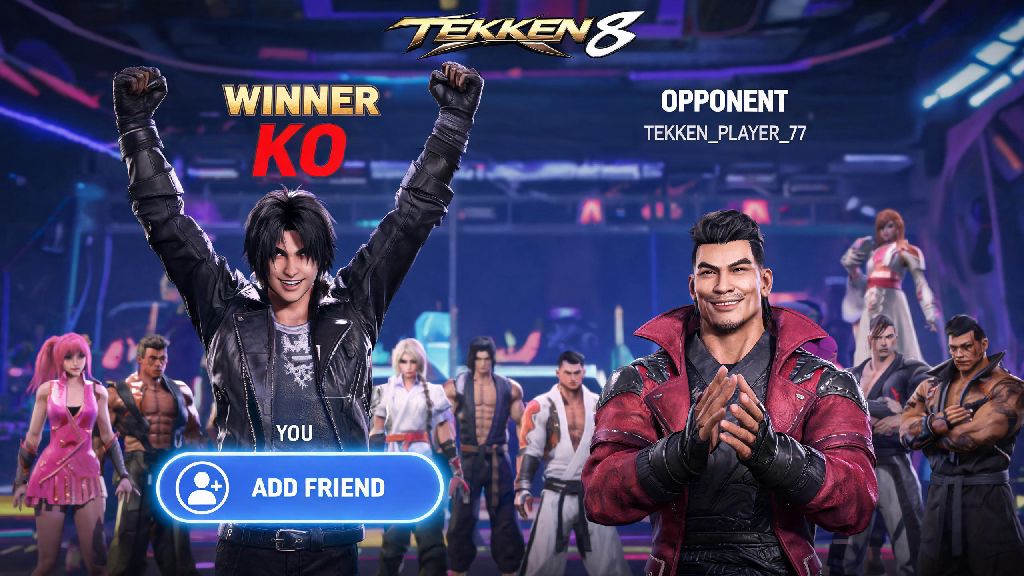
You just pulled off a perfect KO against a random player in Tekken 8 casual matches, and they sent you a message saying they loved your Jin combo playstyle. You want to link up again for more matches later, but you have no clue how to add Tekken 8 friends without fumbling through messy menu layers. I’ve been there too, spending 10 minutes scrolling through settings after a fun set just to send a friend request, only to realize I missed their gamertag before they left the lobby. This guide walks you through every step for every platform, plus fixes for the most common issues that stop friend requests from going through.
How to Add Tekken 8 Friends Directly From In-Game Lobbies
The easiest time to add someone you’ve played with is right after a match, before either of you leaves the lobby. You don’t have to leave the post-match screen or write down their gamertag to send a request. You can send a friend request right from this screen without navigating away by selecting the opponent’s name from the post-match leaderboard, pressing the corresponding button for “view profile” (X on PlayStation, A on Xbox, left click on PC), then choosing “send friend request.”
If you miss that 30-second post-match window, you can still access the recent players list from the main menu. Go to the “Online” tab, scroll down to “Recent Players,” and you’ll see everyone you’ve matched with in the last 24 hours, including opponents from ranked, casual, and team battle modes. If you’re in a custom player lobby with multiple people, you can send requests to anyone in the lobby by opening the player list from the left side of the screen, selecting their name, and following the same steps. Make sure your crossplay settings are turned on if you’re trying to add a friend on a different platform, otherwise their name won’t show up in your recent players list at all. I’ve had this happen multiple times when I accidentally turned crossplay off to avoid input lag from distant servers, and I couldn’t find a friend I matched with on PS5 when I was playing on PC.
Platform-Specific Steps for Adding Friends Outside the Game
Sometimes you want to add a friend who you haven’t matched with yet, like a buddy from work who mentioned they just bought the game, or someone you met in a Tekken community group online. The steps vary a little depending on what platform you’re using, but all are pretty straightforward once you know where to look.
For PlayStation users, go to your PSN friends list, select “Add Friend,” enter their PSN ID, send the request, and once they accept, they’ll automatically show up in your in-game Tekken 8 friends list the next time you boot up the game. For Xbox users, the process is almost identical, just use their Xbox gamertag instead of a PSN ID. For PC Steam users, open your Steam overlay, go to Friends, add their Steam username, and once accepted, they’ll appear in your in-game list. If you’re playing the PC version on Epic Games Store, use your Epic friends list instead.
If you play on both PC and console, your friend list won’t sync between platforms unless you link your Bandai Namco account to all your profiles. That’s a common mistake people make when they switch between playing on their couch on PS5 and playing on their PC when they travel, so make sure you link your accounts first if you want the same friend list everywhere. Before you send any friend requests, make sure you check these pre-requisites to avoid wasted effort:
Fixing Common Issues When Adding Tekken 8 Friends
Even if you follow all the steps correctly, you might run into issues where friend requests don’t show up, or friends don’t appear in your in-game list even after they accept your request. These issues are almost always easy to fix, and you don’t have to reach out to support to resolve them in most cases.
The first and most effective fix is to restart your game. Tekken 8 doesn’t always refresh your friend list in real time, so a quick restart will pull the latest data from your platform and Bandai Namco’s servers. If that doesn’t work, check your crossplay settings again. Even if you turned it on once, sometimes game updates reset your settings back to default, so double check that crossplay is enabled if you’re adding friends on different platforms.
If you still can’t see a friend, ask them to send you a lobby invite directly using your platform’s built-in invite system, instead of trying to find each other in the in-game lobby browser. That works 9 times out of 10, even if your friend list isn’t syncing properly for some reason. Another common issue is privacy settings on your console or PC. If you have your profile set to private, you won’t receive friend requests from other Tekken 8 players, even if you matched with them in a lobby. Go to your platform’s privacy settings and make sure “allow friend requests from everyone” or “allow friend requests from friends of friends” is turned on, depending on your preference.
Fun Things to Do With Your Tekken 8 Friends Once Added
Now that you’ve got your friends added to your list, you can access a bunch of multiplayer features you can’t use when playing with random players. These features make the game way more social, and they’re great for improving your skills at the same time.
First, you can create private player lobbies where you can practice combos, try out new characters, or run tournament-style sets with your group without random players joining in. I host a weekly lobby with 7 of my friends where we run a small bracket every weekend, and the loser has to buy the group pizza the next week. It’s a great way to make casual play feel more fun and competitive. You can also team up for co-op arcade mode, where you and a friend fight through a series of AI opponents together, sharing a single health bar. It’s way more challenging than playing arcade mode solo, and it’s a great way to practice team combos if you’re planning to enter team battle tournaments later.
You can also use the friend list to track your friends’ ranked progress, so you can cheer them on when they hit a new rank like Tekken King, or challenge them to a set when you’re close to passing their rank on the leaderboard. Just don’t get too competitive if you lose, it’s all just for fun at the end of the day. You can also share replay codes with your friends so they can point out mistakes in your playstyle, or show off a cool new combo you figured out while practicing in training mode.
Whether you’re adding a random player who gave you the best set of your life, or a long-time friend you’ve played fighting games with for years, knowing how to add Tekken 8 friends makes the entire game experience way more enjoyable. You don’t have to fumble through menus or miss out on playing with people you have fun with, as long as you follow the simple steps we outlined and know how to fix the common issues that pop up. Next time you have a great match with someone, don’t hesitate to send that friend request – you might end up with a new training partner or even a teammate for your next local fighting game tournament.