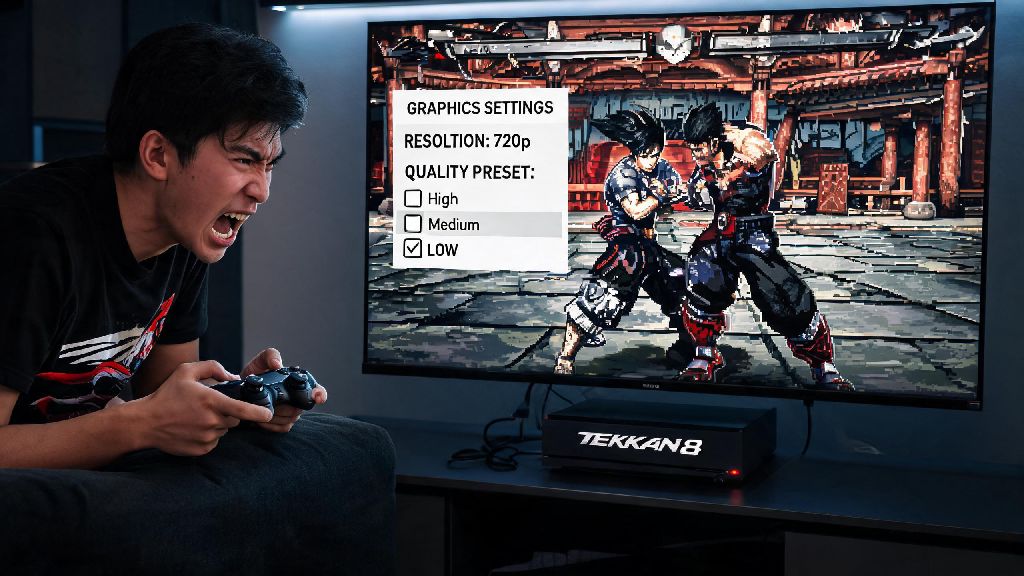
We’ve all been there: You’re 2 rounds up in a ranked Tekken 8 match, lining up a perfect Rage Art to take the win, when the game stutters for half a second. You miss the input, your opponent reverses, and suddenly you’re staring at a loss screen that feels entirely unfair. Performance issues don’t just ruin your fun – they can tank your rank and make even casual matches feel like a chore. This guide breaks down simple, actionable fixes for every platform so you can learn how to make Tekken 8 run better, no advanced technical skills required.
Adjust In-Game Graphics Settings for Immediate FPS Boosts
The first place to start when fixing performance issues is right inside Tekken 8’s own settings menu, where small tweaks can deliver huge gains without requiring you to change anything on your device. Start with the settings that have the biggest impact on performance and the least noticeable effect on visual quality first, so you don’t have to sacrifice how the game looks to get smooth frames.
Shadow Quality is by far the biggest resource hog in Tekken 8. Dropping it from High to Medium or Low will give you an extra 15 to 20 FPS in most cases, and you’ll barely notice a difference during fast-paced fights. Next, turn off Post-Processing Effects like motion blur, bloom, and depth of field entirely. These settings only make cutscenes and replay footage look nicer, and they add zero value to actual gameplay while eating up GPU resources.
For console players, you’ll see the biggest difference by switching from Quality Mode to Performance Mode in the game’s display settings. Quality Mode adds ray tracing for nicer lighting, but it regularly drops below 60 FPS during busy fights with lots of particle effects. Performance Mode locks the game to a steady 60 FPS on both PS5 and Xbox Series X/S, and it enables 120 FPS support if you have a compatible display. These small changes go a long way if you want to figure out how to make Tekken 8 run better without sacrificing too much visual quality.
Fix Background Bloat That’s Stealing Resources From Tekken 8
A lot of performance issues have nothing to do with the game itself, and everything to do with other apps and processes running in the background of your device. Even high-end PCs and consoles only have so much processing power and RAM to go around, and if other apps are using those resources, Tekken 8 won’t run as smoothly as it should.
For Windows PC users, enable Game Mode in your system settings first. This feature automatically pauses non-essential background processes like Windows updates and file syncing while you’re playing, and it prioritizes Tekken 8 for CPU and GPU resources. It takes 10 seconds to turn on, and most users see an immediate 5 to 10 FPS boost after enabling it. For console players, make sure you fully close any other games you have suspended in the background, rather than just switching to Tekken 8. Suspended games still use up RAM and processing power that could be going to your match.
Before you launch Tekken 8, take 30 seconds to close these common resource-heavy apps:
I learned this lesson the hard way during a local tournament set last year, when my cloud backup started running mid-match and caused a 30 FPS drop that cost me the round. I never launch the game without checking my background apps first now, and I haven’t had that issue since.
How to Make Tekken 8 Run Better by Updating Drivers and System Software
It’s easy to ignore software update notifications when you’re eager to jump into a match, but outdated drivers and system software are one of the most common causes of unexplained performance issues in Tekken 8. Both hardware manufacturers and Bandai Namco regularly release updates specifically designed to fix bugs and boost performance for the game.
For PC players, the most important update to install is your GPU driver. Both NVIDIA and AMD release game-optimized drivers for major releases like Tekken 8, and these updates can deliver a 10 to 15% performance boost completely for free. Stick to stable official releases rather than beta drivers, though – beta drivers often have unpatched bugs that can cause crashes or stutters mid-match. If you use mods for Tekken 8, make sure all your mods are compatible with the latest game patch before you launch, as outdated mods are another common cause of performance issues and crashes.
For console players, make sure both your system software and Tekken 8 itself are fully updated. Bandai Namco releases regular patches for the game that fix performance bugs, especially after new character drops or game mode updates. I’ve seen players struggle with constant stutters for weeks, only to find out they had automatic updates turned off and were running a 6-month-old version of the game.
Fix Input Lag and Stutter for Smoother, More Responsive Gameplay
Even if you’re getting a steady 60 FPS, input lag can make Tekken 8 feel slow and unresponsive, and it can make it impossible to land precise combos or block fast mixups. The good news is most input lag issues are easy to fix with a couple of small tweaks.
First, always use a wired controller connection instead of Bluetooth if you can. Bluetooth adds between 10 and 20ms of input lag, which is exactly the difference between blocking a fast jab and getting launched into a full combo. For PC players, turn off VSync if you’re noticing input lag, or use Fast Sync (for NVIDIA cards) or FreeSync (for AMD cards) to eliminate screen tearing without adding extra lag. If you’re playing on a TV or monitor, make sure you enable Game Mode in your display’s settings. This disables unnecessary post-processing features like motion smoothing that can add up to 60ms of extra input lag. I’ve tested budget TVs where enabling Game Mode cut input lag from 75ms down to 15ms, which is a night and day difference for fighting games.
Another quick fix for PC players is to install Tekken 8 on an SSD instead of a traditional HDD. SSDs load data much faster, so you won’t get random stutters mid-fight when the game loads new assets like stage transition effects or Rage Art animations. Load times are also cut by 70% or more, so you spend less time waiting for matches to start and more time playing.
You don’t need to spend hundreds of dollars on new hardware to get smooth, responsive Tekken 8 gameplay. Most performance issues are caused by easy-to-fix settings or background processes, and you can implement all the tweaks in this guide in less than 15 minutes. Start with the simplest fixes first – adjusting in-game settings and closing background apps will solve 80% of common performance problems right away. Following these tips is the easiest way to learn how to make Tekken 8 run better so you can focus on climbing ranks and landing those perfect combos without annoying interruptions.